
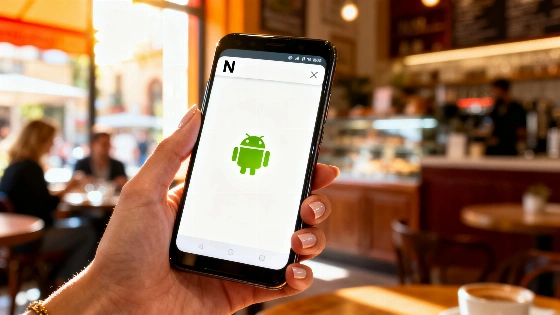
What Does the 'N' Mean on the Android Screen: An Important Feature Many Overlook. Sometimes the letter 'N' appears on Android smartphone screens — this is not an error or warning. This icon indicates that NFC technology is enabled, allowing you to make payments and verify your identity with your phone. We explain how this feature works and when you should consider turning it off.
The letter N may suddenly appear in the top bar of your Android smartphone screen—and for many users, this comes as a surprise. This icon is not related to errors or security threats: it means the NFC module is enabled on your device. This technology allows you to use your phone for contactless payments, ticket validation, and even identity verification—but only after the owner confirms the action.
Android smartphones display various icons at the top of the screen so users know which connections are currently active. Among the familiar WiFi, Bluetooth, and mobile data icons, you may sometimes see a stylized letter N. This specifically indicates that NFC is turned on and ready to use.
How NFC works and what it's used for
NFC stands for Near Field Communication. The technology allows devices to exchange data at a very short distance—usually no more than a few centimeters. In everyday life, NFC is most often used for making payments: simply bring your phone close to a terminal to complete a transaction. In addition, NFC can be used to validate tickets, use your smartphone as a transport card, or read electronic documents, such as the DNI in Spain.
It's important to understand: the N icon is not a warning, but simply a reminder that the function is active. On some Android models, this icon is always visible; on others, it appears only when you open the notification panel or quick settings. There are also devices where the N icon doesn't show up at all, even if NFC is enabled.
Security and power consumption
Many people worry that active NFC might lead to unauthorized charges or quickly drain the battery. In practice, these concerns are unfounded. To make a payment or perform another operation, confirmation is always required—through a banking app, Google Wallet, or another service. The action can only be confirmed with a fingerprint, facial recognition, or PIN code. Without this, no transaction will go through, even if someone brings a terminal close to your phone.
As for energy consumption, the NFC module has virtually no impact on the device's battery life. So if you regularly use contactless payments or electronic tickets, there's no need to turn off the function every time after use.
How to turn off the N icon and NFC
If for some reason you don't want NFC to be enabled all the time, you can easily turn it off. The quickest way is to use the quick settings panel: there's usually a separate button for NFC next to WiFi and Bluetooth. You can also disable the function through the settings menu: go to the 'Devices' section, then 'Connection preferences,' and select NFC. After this, the N icon will disappear from the notification bar, if your smartphone supports displaying it.
For most users, keeping NFC enabled at all times poses no risks and doesn't interfere with device performance. But if you don't use contactless services, you can turn off the function in just a couple of taps.
According to Talent24h, NFC technology continues to be actively integrated into everyday life, and the number of services supporting contactless transactions grows each year. It is important to remember that the security of such payments is ensured not only by the technology itself, but also by mandatory user authentication.